







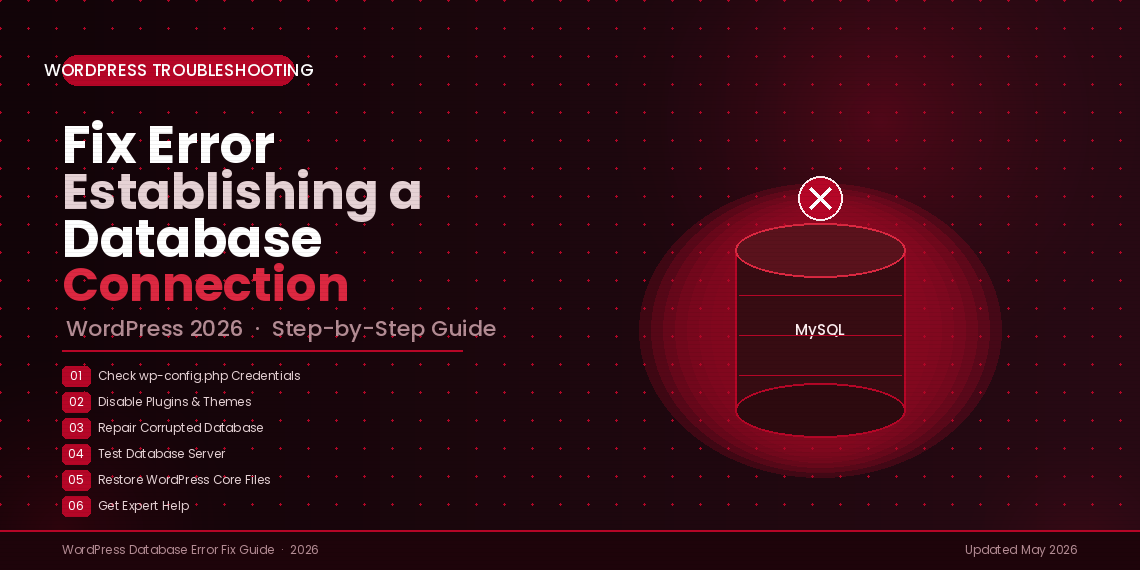

While using WordPress, sometimes I come across completely unexpected issues — and one of the scariest ones is the “Error Establishing a Database Connection” message that suddenly appears on your WordPress site. This is a fatal error. It does not allow you or your visitors to access the website at all. Nothing loads. The site goes completely blank or shows that dreaded white screen with that one error line.
For beginners, especially, this can feel very overwhelming. But trust me — it is actually fixable, and in most cases, you do not even need to call a developer. In this guide, I will show you all the possible ways to fix the error establishing a database connection in WordPress, step by step, in plain and simple language.

What Causes the “Error Establishing a Database Connection” in WordPress?
Before jumping straight into the fixes, it helps to understand why this error shows up in the first place. Basically, your WordPress website needs to talk to a MySQL database every time someone visits a page. If that conversation breaks down for any reason, this error appears.
From my experience, the most common causes are:
- Incorrect database login credentials inside your
wp-config.phpfile - Corrupted WordPress core files (from a bad update or a hack attempt)
- Corrupted or damaged database tables
- The database server is down (especially common on shared hosting)
- Too much traffic suddenly hits your website at once
- A recently updated plugin or theme that broke something
WordPress fatal error
DB credentials
run on WordPress
with this guide
🔍 What Causes This Error? (Breakdown)
Most common root causes of the database connection error in WordPress
Source: WP Engine, Kinsta WordPress Error Reports 2025–2026
🛠️ Which Fix Resolves It? (Success Rate)
How often each troubleshooting step resolves the database connection error
Source: WordPress community support data 2025–2026
How to Fix “Error Establishing a Database Connection” in WordPress
I will take you through the troubleshooting process step by step. Follow each step one by one and check your website in between. Do not skip any step — each one is designed to rule out one possible cause at a time so you can pinpoint the exact problem.
Step 1 — Check Your WordPress Database Connection Credentials
This is the very first thing I always check — and honestly, this alone fixes the problem in most cases. WordPress uses a specific database username and password to connect to the database, and all of this information is stored inside a very important file called wp-config.php.
There are a few common situations where the credentials can go wrong. For example, if you recently moved your WordPress site to a new hosting provider, the database details would have changed. Or maybe someone edited the site files and accidentally changed something. Or perhaps your hosting provider reset some settings. In any of these situations, the error establishing a database connection will appear.
To check this, open the wp-config.php file — you can access it via FTP or your hosting file manager — and look for these four lines specifically:
define('DB_NAME', 'your_database_name');     /* Name of your WordPress database */
define('DB_USER', 'your_database_username'); /* Your database username */
define('DB_PASSWORD', 'your_db_password');   /* Your database password */
define('DB_HOST', 'localhost');              /* Database server address */
Make sure all four of these match exactly what your hosting provider has given you. You can verify the correct database name, username, and password from your hosting control panel — usually under MySQL Databases or Database Manager in cPanel or Plesk.
Once you have made the corrections, save the file and re-upload it to your server via FTP. Then go back to your website and check if the error is gone.
✅ My Tip: In 2026, most good hosting providers like Hostinger, SiteGround, and Cloudways will show your database credentials directly inside your hosting dashboard. You do not need to guess — just copy and paste them into your wp-config.php file carefully.
Step 2 — Check if Plugin or Theme Files Have Been Corrupted
Have you recently updated a plugin or theme, and then the whole website went down? Or maybe you edited some files manually? Or noticed some unusual activity on your server? If yes, there is a good chance your WordPress files got corrupted and that is what is causing the database connection error.
If none of the above happened to you — skip this step and move straight to Step 3.
Here is what I do to test this:
- Connect to your hosting server via FTP. I personally use FileZilla — it is free, reliable, and still the most popular FTP tool in 2026. You can also use WinSCP or SmartFTP. To connect, you just need your FTP username, password, and hostname — your hosting provider sends all of this in your welcome email when you first sign up.

- Once connected, navigate to your WordPress root folder. This is usually inside the public_html or www directory, depending on your host.

- Inside the root, you will see folders like
wp-admin,wp-content, andwp-includes. - Go into
wp-contentand find thepluginsfolder. Simply rename this folder to something likeplugins_disabled. - Now go back to your website and check if the error is still showing.
If the error disappears, the problem was caused by one of your plugins. Rename the folder back to plugins and then disable each plugin one by one by renaming its individual subfolder. Check the website after each rename. This way, you will find exactly which plugin the culprit is. Once identified, either delete that plugin or look for an updated version that is compatible with your current WordPress version.
If disabling plugins does not fix the issue, do the same thing with the themes folder inside wp-content. Rename it to themes_disabled and check again.
✅ My Tip: If you are running WordPress 6.x or 7.x in 2026, try accessing yourwebsite.com/wp-admin directly. If the admin dashboard loads even when the front-end is showing the error, it tells me straight away that the issue is theme or plugin related — not a database credentials problem.
Step 3 — Check if Your Database Has Become Corrupted
The WordPress database is actually a very complex thing — it has many tables, and each one plays a small but important role. Sometimes, due to a bad server crash, an incomplete update, or a hosting migration gone wrong, some of these tables can get damaged or corrupted. When that happens, the error establishing a database connection shows up.
Here is how I check this and repair the database:
First, try visiting yourwebsite.com/wp-admin directly. If you see a message like “One or more database tables are unavailable” or a prompt to run a database repair, that confirms your database tables are corrupted, and this step is for you.
To repair the database, here is what I do:
- Connect to your server via FTP and download the
wp-config.phpfile to your desktop. - Open it in any text editor — Notepad on Windows, TextEdit on Mac, or VS Code works perfectly fine.
- Add the following line just before the line that says
/* That's all, stop editing! */
define('WP_ALLOW_REPAIR', true);- Save the file and re-upload it to your server via FTP, overwriting the old version.
- Now open your browser and go to:
yourwebsite.com/wp-admin/maint/repair.php
- You will see two buttons — Repair Database and Repair and Optimize Database. Click either one and let it finish the automatic repairs.
- Once done, go back to your website and check if the error is fixed.
⚠️ Important: After the repair is done successfully, go back into wp-config.php, remove that line you just added, and re-upload the file. I always make sure to do this immediately — leaving it active is a security risk because it allows anyone on the internet to access your repair page.
Step 4 — Check if Your Database Server is Down
Okay, so you have done everything above, and it all seems fine — credentials are correct, no corrupted files, no plugin issues. But you are still getting the same error. At this point, I suspect the issue is with the MySQL database server itself being down.
This actually happens more often than you would think — especially on shared hosting plans. When the server gets overloaded with traffic from multiple websites sharing the same resources, it slows down or completely stops responding. The result? Your WordPress site cannot connect to the database at all.
Here is what I do in this situation:
- If I have other websites running on the same hosting server, I check them first. If they are also showing errors, that confirms the server is down. Contact your hosting support immediately and let them know what is happening.
- If you only have one website, log in to your hosting dashboard and open phpMyAdmin. Try connecting to your database from there. If it loads, your database itself is fine, and the issue is with how WordPress is connecting to it.
- If you can connect in phpMyAdmin, verify that your database user has the correct permissions — they need SELECT, INSERT, UPDATE, DELETE, CREATE, DROP, ALTER permissions at minimum.
- I also do a quick manual connection test by creating a new file called
dbconnection.phpand adding this code inside it:
<?php
$link = mysqli_connect('localhost', 'your_username', 'your_password');

if (!$link) {
    die('Could not connect: ' . mysqli_error());
}

echo 'Connected successfully';
mysqli_close($link);
?>
Replace your_username and your_password With your actual database credentials, upload this file to your website root, and open it in a browser. If it says “Connected successfully,” the server connection is working fine, and I need to look somewhere else for the problem. If it fails, the database server is definitely down, and it is time to get in touch with your hosting provider right away.
⚠️ Important: Once the test is done, delete the dbconnection.php file from your server immediately. I never leave a file with database credentials sitting live on a website — it is a serious security risk.
Step 5 — Restore Your Default WordPress Files
If you have tried all the steps above and are still getting the same error, then most likely the WordPress core files themselves have become corrupted. This can happen for several reasons — accidental modification of files, a hacking attempt on your website, or a plugin that modified core files it should not have touched.
The good news is that restoring clean WordPress files is actually quite simple. Here is exactly how I do it:
- Go to wordpress.org/download and download the latest clean version of WordPress — as of 2026, that will be WordPress 7.x.
- Unpack or unzip the downloaded package on your desktop.
- Before uploading anything, open the unzipped folder and delete the
wp-contentfolder from it. This folder contains your themes, plugins, and uploaded media — you definitely do not want to overwrite that.
- Also, make sure you do not overwrite your
wp-config.phpfile — that has your database credentials and site settings in it. - Connect to your server via FTP, go to your WordPress root folder, and upload all the remaining files from the freshly downloaded package — overwriting everything except
wp-contentandwp-config.php. - Once the upload is done, visit your website and check if the error is now fixed.
✅ My Tip: In 2026, many hosting providers like Cloudways, Kinsta, and WP Engine allow you to restore your WordPress site from a one-click backup straight from the dashboard — without needing FTP at all. If you have a recent backup available, that is honestly the fastest route back online in my experience.
Step 6 — Still Not Fixed? Ask for Expert Help
You have done a lot of research, gone through all the steps above, and still have not gotten your website back up? First of all, do not panic. These things happen, and sometimes the issue is deeper than what a standard troubleshooting guide can cover. It might be a server-level issue, a complex database problem, or something very specific to your hosting environment that needs a trained eye.
At this point, it is best to get professional help. WordPress developers are highly experienced in fixing all kinds of database and server errors. I have personally helped hundreds of website owners get their sites back online quickly.
Quick Summary — All Fix Steps at a Glance
🔧 Error Establishing a Database Connection — My Fix Checklist
- Step 1: Check and correct
wp-config.phpdatabase credentials — DB_NAME, DB_USER, DB_PASSWORD, DB_HOST - Step 2: Rename the
pluginsfolder via FTP to disable all plugins and test — then renamethemesfolder if needed - Step 3: Add
WP_ALLOW_REPAIRtowp-config.phpand run database repair from/wp-admin/maint/repair.php - Step 4: Test database server connection via phpMyAdmin or the
dbconnection.phptest script — contact host if server is down - Step 5: Download a fresh WordPress copy, remove
wp-contentfrom it, and overwrite your existing files via FTP - Step 6: Contact a WordPress expert if none of the above works
Frequently Asked Questions
What does “Error Establishing a Database Connection” mean in WordPress?
It means WordPress is unable to connect to its MySQL database. This happens when the database credentials are wrong, the database tables are corrupted, or the database server itself is down. It is a fatal error that makes the entire website inaccessible to both visitors and the admin.
How do I fix the WordPress database connection error without a developer?
In most cases you can fix it yourself by checking your wp-config.php file and making sure the DB_NAME, DB_USER, DB_PASSWORD, and DB_HOST values are all correct. If that does not work, try the database repair tool at yourwebsite.com/wp-admin/maint/repair.php after adding define('WP_ALLOW_REPAIR', true); to your wp-config.php. I have fixed this error many times using just these two steps.
Can a plugin cause the database connection error in WordPress?
Yes, it is possible. A badly coded plugin or a plugin that conflicts with your WordPress version can sometimes interfere with database connectivity. I test this by renaming the plugins folder via FTP to temporarily disable all plugins and see if the error disappears. If it does — one of the plugins was the problem.
Where is the wp-config.php file in WordPress?
The wp-config.php file is located in the root directory of your WordPress installation — the same folder that contains wp-admin, wp-content, and wp-includes. You can access it via FTP or through your hosting control panel’s File Manager. It is one of the most important files in your entire WordPress setup.