







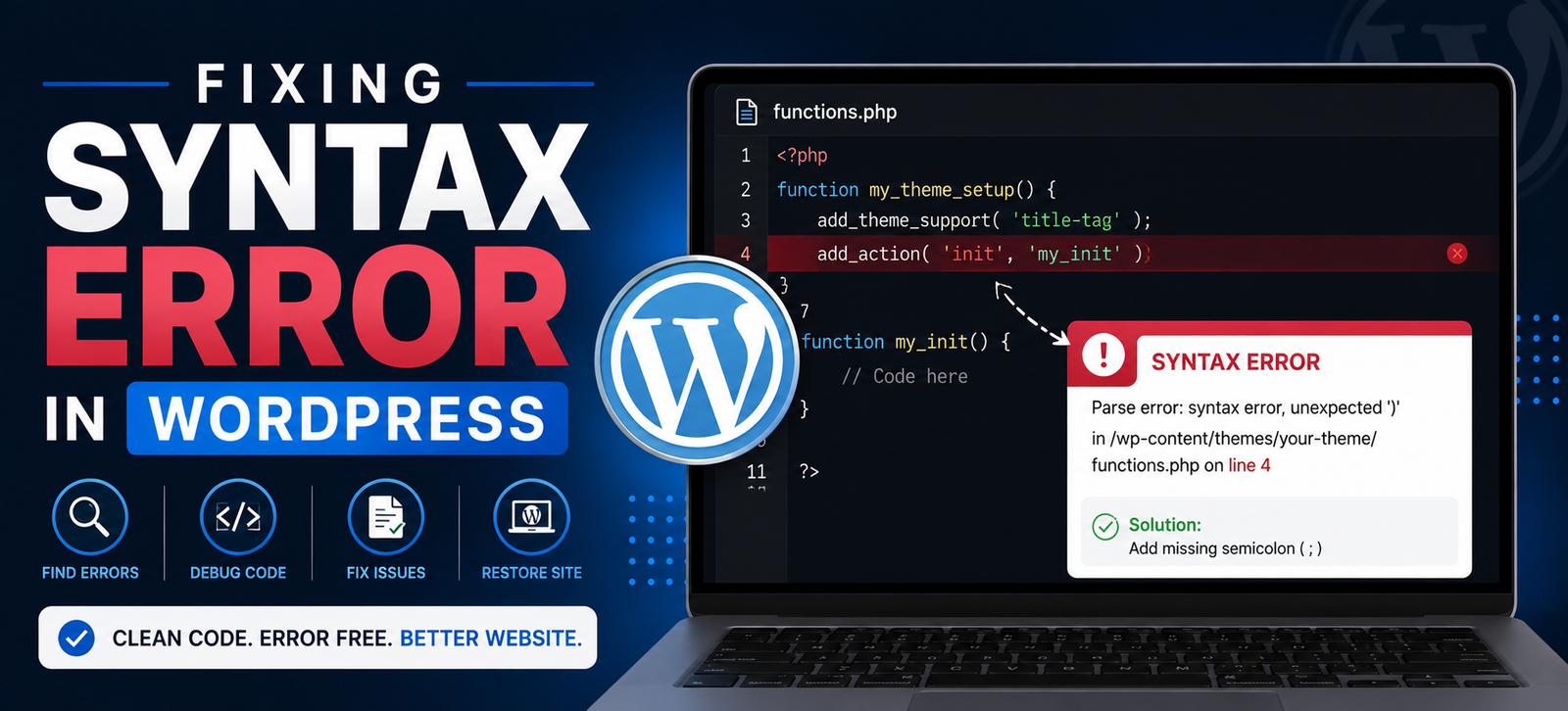

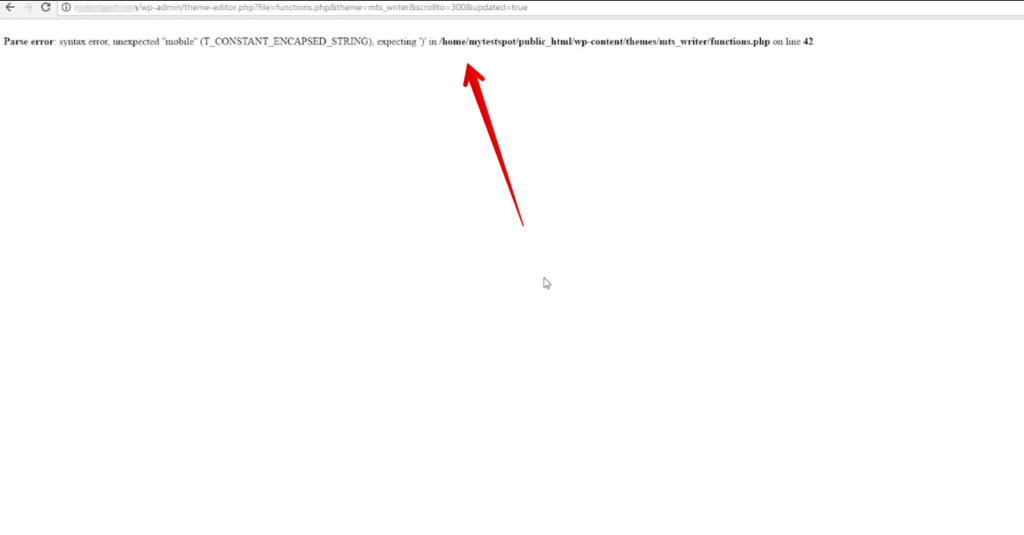
How to fix syntax error in WordPress – okay this is one of those situations that feels catastrophic in the moment but is actually fixable in a few minutes once you know what to do. You updated a plugin, edited a theme file, or made a small code change — and suddenly your site is down showing something like:
I have been there. Most WordPress users have. The good news is — knowing how to fix syntax error in WordPress 2026 is straightforward once you understand the two methods available. Let me walk you through both clearly.
⚠️ Important: Before making any changes to WordPress files — always take a full backup of your website first. This protects you from any further complications during the fix process.
How to Fix Syntax Error in WordPress – Full Guide
What Causes a Syntax Error in WordPress?
A WordPress syntax error almost always happens because of one of these three things:
Updating or installing a theme or plugin that has a PHP code conflict Manually editing a theme or plugin file and introducing an incorrect PHP syntax – a missing semicolon, an unclosed bracket, a misplaced quote
Copy-pasting code from a tutorial or forum that has invisible characters or wrong quote marks
The result is the same in all cases — WordPress cannot process the PHP file and throws a parse error. Your site goes down. Your dashboard becomes inaccessible. And because you cannot log in to WordPress, you cannot undo the change from inside the dashboard.
That is the frustrating part. But here is the thing — the error message itself tells you exactly which file and which line caused the problem. Read it carefully before doing anything else. That information is everything you need to fix it.
Before You Start – Read the Error Message
Your browser will show something like:
Parse error: syntax error, unexpected '}' in /home/username/public_html/wp-content/plugins/your-plugin/plugin-file.php on line 87
Note down two things from this message:
The file path — for example /wp-content/plugins/your-plugin/plugin-file.php
The line number — for example line 87
You will need both when fixing the file. This is how to fix syntax error in WordPress efficiently — read the error before touching anything.
Method 1 – Fix WordPress Syntax Error Through FTP
FTP (File Transfer Protocol) lets you access your website’s files directly from your computer — bypassing WordPress entirely. This is the most reliable method when your dashboard is inaccessible.
Step 1 – Download and Install FileZilla
FileZilla is a free FTP client that works on Windows and Mac. Download it from filezilla-project.org and install it on your computer. It is the most widely used FTP client for WordPress users in 2026 and completely free.
Step 2 – Connect to Your Website via FTP
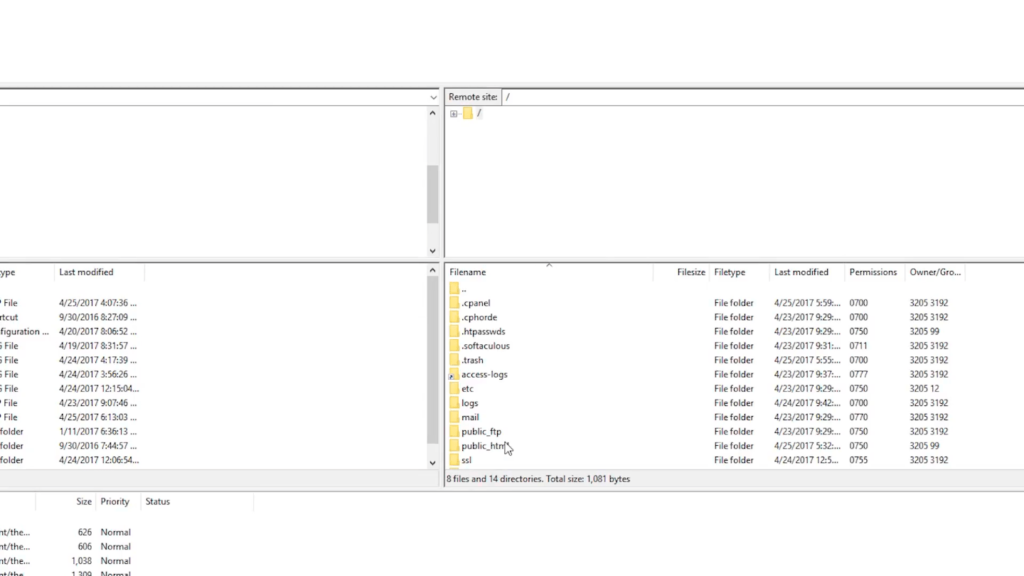
Open FileZilla and enter your FTP credentials in the fields at the top:
Host: your domain name or server IP (e.g. ftp.yoursite.com)
Username: your FTP username from your hosting account
Password: your FTP password
Port: 21 (default for FTP)
Click Quickconnect. FileZilla will connect and show your server files on the right side and your local computer files on the left side.
Step 3 – Navigate to the Problem File
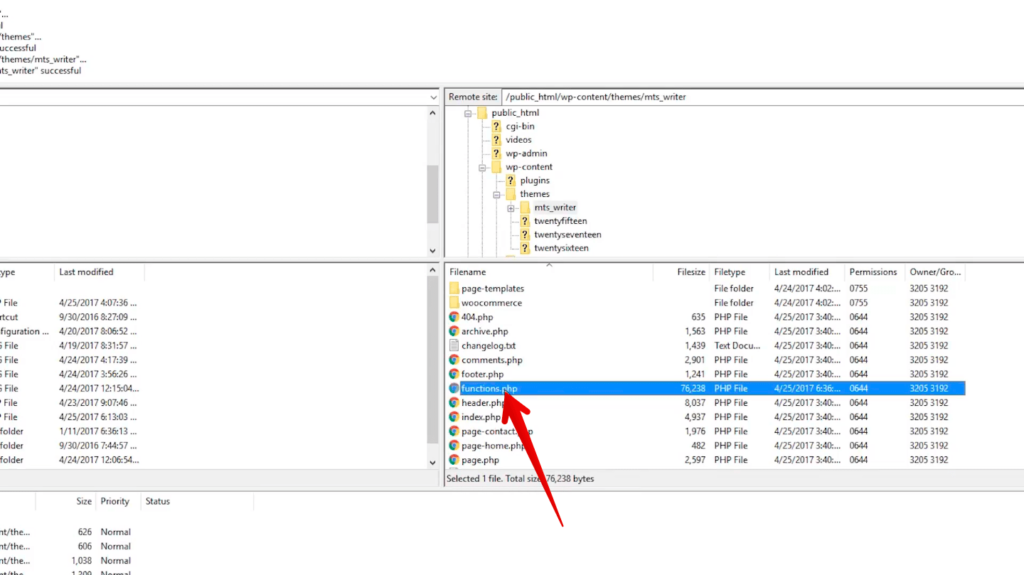
Using the file path from your error message, navigate to the exact file causing the issue. For example if the error says /wp-content/themes/yourtheme/functions.php — navigate through the folders on the right panel until you reach that file.
Step 4 – Edit the File
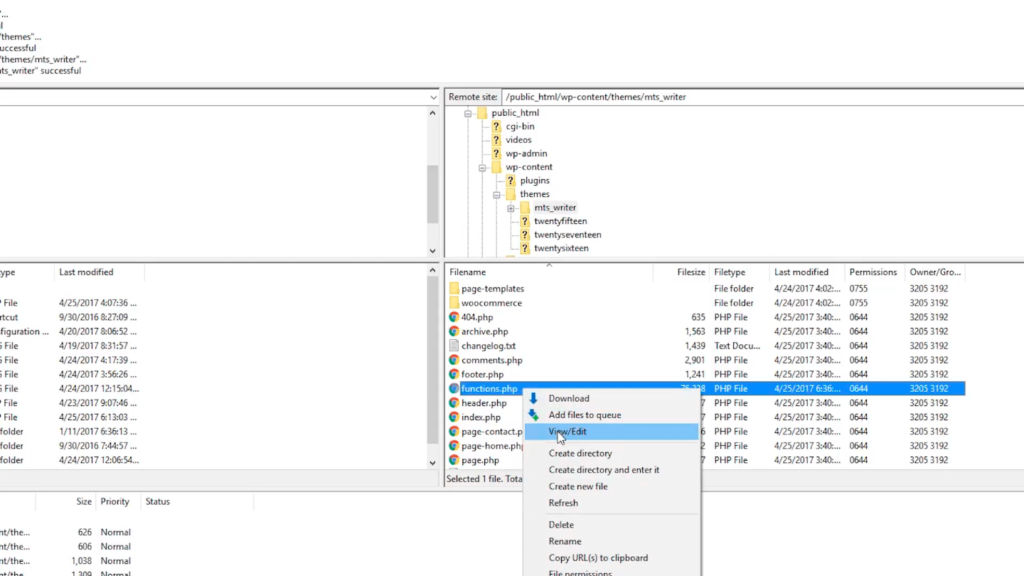
Right-click the problem file and select View/Edit. FileZilla will open it in a text editor on your computer. Go to the exact line number mentioned in the error message. Look carefully at that line and the lines just before it — the actual error is often one line above the line number shown.
Common fixes:
- Missing semicolon at the end of a line — add
; - Unclosed bracket — add the missing
)or} - Wrong quote marks — replace “smart quotes” with straight quotes
- Extra character — delete whatever you accidentally added
If you are not sure what to change — the safest fix is to delete everything you added recently on that line and restore it to what it was before your edit.
Step 5 – Save and Upload
Save the file in your text editor. FileZilla will detect the change and show a popup saying “File Has Changed — Upload?” — click Yes. The corrected file uploads back to your server automatically.
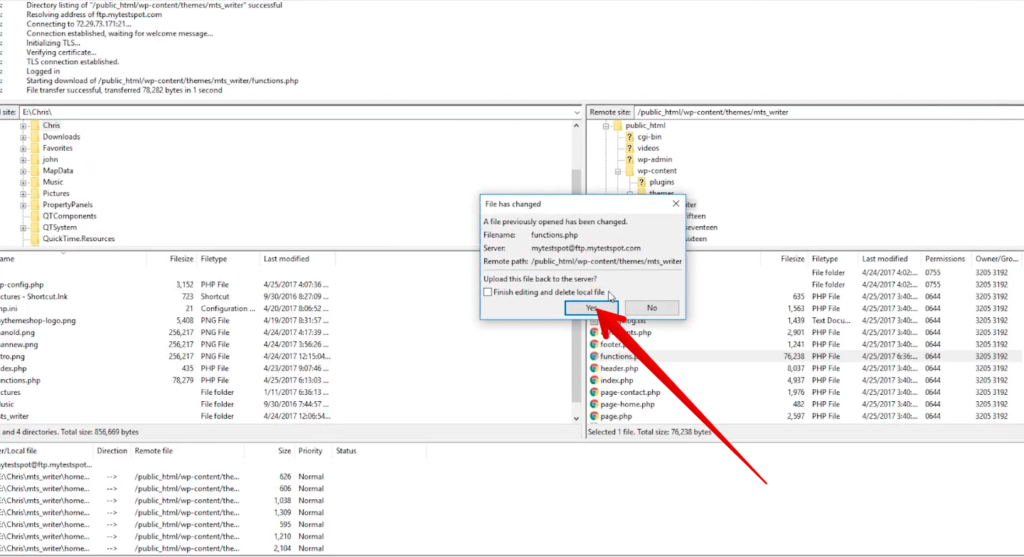
Refresh your website URL in the browser. If the syntax error is fixed — your site will load normally. That is how to fix syntax error in WordPress 2026 using FTP.
Method 2 – Fix WordPress Syntax Error Through cPanel File Manager
If your hosting account gives you cPanel access — this method does not require downloading any additional software. Everything happens inside your browser.
Step 1 – Log Into cPanel
Go to your hosting account and log into cPanel. This is usually accessible at yoursite.com/cpanel or through your hosting account dashboard. major hosting providers — Hostinger, Bluehost, SiteGround, GoDaddy — still use cPanel as their primary control panel.
Step 2 – Open File Manager
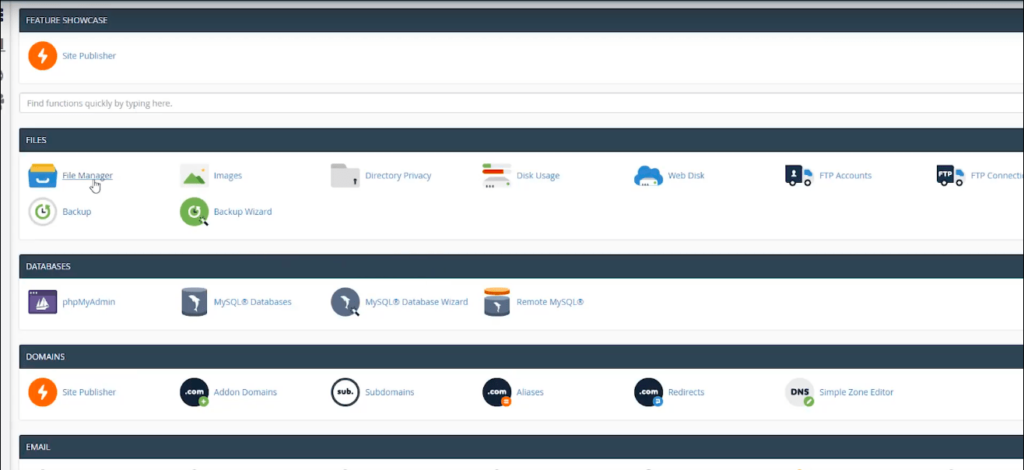
Inside cPanel look for the File Manager option — it is usually in the Files section. Click it. File Manager opens your website’s file directory directly in the browser.
Step 3 – Navigate to the Problem File
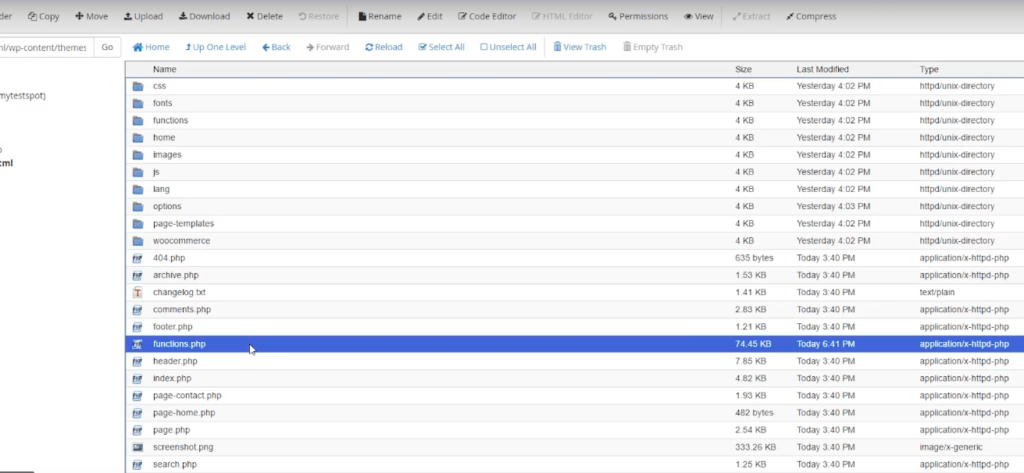
Using the file path from your error message, navigate through the folder structure to find the exact file. Click through the folders — public_html → wp-content → themes or plugins → your file.
Step 4 – Open Code Editor
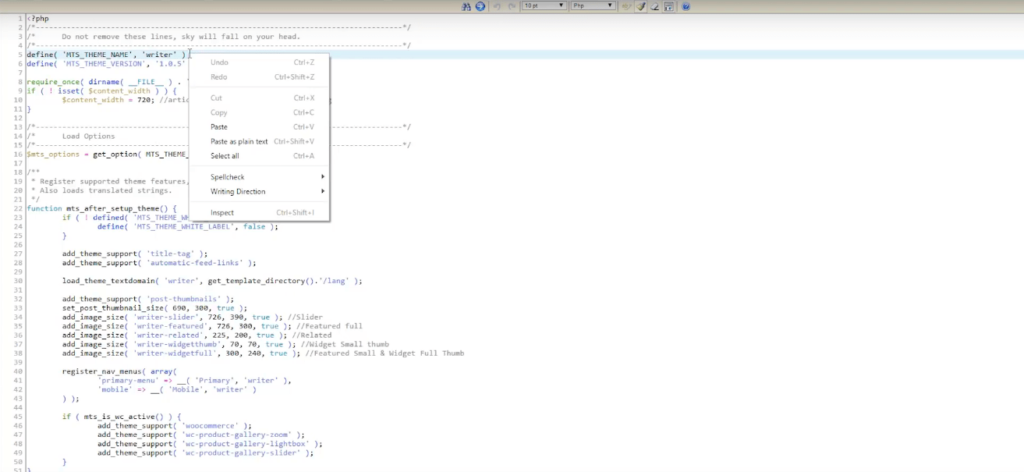
Right-click the problem file and select Edit or Code Editor. The Code Editor in cPanel shows your file with line numbers on the left — making it very easy to jump straight to the problem line.
Step 5 – Fix and Save
Go to the exact line number from the error message. Make the necessary correction — fix the syntax, remove the bad character, restore the original code. Click Save Changes at the top of the editor.
Close the editor, go back to your browser, and refresh your website. Your site should load correctly. This is how to fix syntax error in WordPress 2026 using cPanel — no extra software required.
Quick Comparison – FTP vs cPanel Method
| Method | Extra Software Needed | Best For |
|---|---|---|
| FTP (FileZilla) | Yes — FileZilla download required | Users comfortable with FTP, advanced users |
| cPanel File Manager | No — browser only | Beginners, quick fixes, shared hosting users |
Both methods achieve the same result. Use whichever feels more comfortable. If you have cPanel access — start there since it is faster and requires no downloads.
How to Prevent WordPress Syntax Errors
Fixing is good. Not breaking it in the first place is better. A few habits that prevent this entirely:
- Always back up before editing — use UpdraftPlus or your host’s backup tool before touching any code
- Use a child theme — never edit your main theme files directly; create a child theme for custom code changes
- Use a code editor with syntax highlighting — VS Code, Sublime Text, or even the built-in WordPress theme editor highlights PHP errors before you save
- Test plugins on a staging site first — most good hosts offer one-click staging environments
- Use a PHP syntax checker — sites like phpcodechecker.com let you paste code and validate it before adding to your site
Still Cannot Fix It? Get Professional Help
Sometimes you have tried everything — read the error, found the file, made the change — and the site is still down. Or maybe the error message is pointing to a core WordPress file which should never be edited manually. Or you simply do not feel comfortable making changes to PHP files on a live server.
That is completely understandable. In those situations, hiring a qualified WordPress developer is the fastest and safest path to resolution. A professional can diagnose the exact issue, fix it correctly, and make sure nothing else breaks in the process.
Look for developers with verified WordPress experience, clear communication, and transparent pricing. The fix for a typical syntax error is usually quick for an experienced developer — often under an hour of work.
Final Summary – How to Fix Syntax Error in WordPress
- Read the error message — note the file path and line number
- Back up your site before making any changes
- Method 1 — FTP: Use FileZilla to connect, find the file, edit line, save and upload
- Method 2 — cPanel: Open File Manager, find the file, open Code Editor, fix and save
- Refresh your site — confirm it is back online
- Prevent future errors — back up, use child themes, validate code before saving
Knowing how to fix syntax error in WordPress 2026 is one of the most useful skills any WordPress site owner can have. Once you have done it once — it stops being scary and becomes just another routine fix.
Also check my posts on Top 5 WordPress Security Issues and How to fix error establishing a database connection for more guides to keeping your site running smoothly.
Guide updated for WordPress 2026. Steps may vary slightly depending on your hosting provider and cPanel version.